Introduction
As a Shopify developer or app builder, managing content lifecycles is a critical task. This is especially true for dynamic and often extensive parts catalogues. When an older product model is discontinued, or a diagram for spare parts becomes obsolete, simply deleting the associated Shopify product page or Konfig interactive diagram can lead to broken links, frustrated customers, and significant SEO damage.
Implementing 301 redirects is essential for preserving your store's search engine ranking and ensuring a seamless user experience. This article provides a step-by-step guide on how to effectively decommission a Shopify parts catalogue page, specifically an interactive Konfig, and set up appropriate 301 redirects to guide visitors to relevant new content.
Why 301 Redirects are Crucial for Decommissioned Pages
When you remove content from your Shopify store, its URL no longer resolves to a valid page, resulting in a 404 "Page Not Found" error. While a 404 page is better than a broken link, it's far from ideal. This is where 301 redirects come into play.
Preserving SEO Value
- Maintain Link Equity: A 301 redirect signals to search engines that a page has permanently moved. This passes approximately 90-99% of the link equity (or "SEO juice") from the old URL to the new one. Without it, all the SEO value built up over time for that page is lost.
- Prevent Ranking Drops: If search engines encounter too many 404 errors on your site, it can negatively impact your overall domain authority and search rankings.
- Avoid Duplicate Content Issues: When consolidating content, 301s properly consolidate the authority of multiple old URLs into one new, authoritative page.
Enhancing User Experience
- Prevent Frustration: Customers who bookmark old pages or arrive from external links will be seamlessly redirected to relevant content instead of hitting a dead end. This maintains trust and reduces bounce rates.
- Guide Users to Alternatives: Instead of leaving customers to guess, a 301 redirect guides them directly to an updated product, a related collection, or your homepage, improving their journey and potential for conversion.
For Shopify parts pages, which often have complex internal linking structures and may be referenced externally (e.g., in repair manuals, forums), careful 301 redirect management is paramount to a healthy site and positive customer interaction.
Understanding the Konfig Lifecycle and Decommissioning
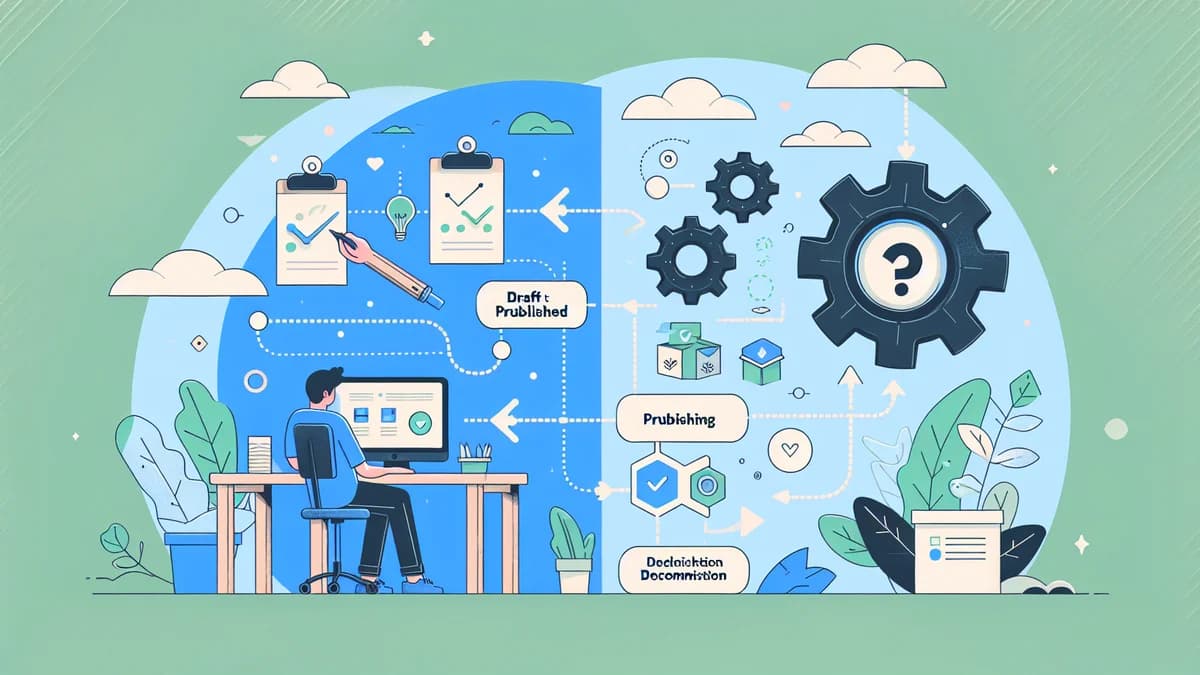
Konfigr streamlines the creation and management of interactive parts diagrams on your Shopify store. A "konfig" represents an interactive parts diagram linked to a "parent product" in your Shopify catalogue. Within the Konfigr app, konfigs progress through a lifecycle:
- Draft: A konfig in progress, visible only in the Shopify theme editor preview. The parent product remains active and purchasable directly.
- Publish: The konfig goes live on your storefront. The parent product's price is automatically set to $0 to prevent direct purchase, and its associated "child products" (the individual parts) are unlisted from search, collections, and recommendations.
- Change Settings: Adjusting display options, hotspot links, or diagram images for a published konfig.
- Decommission: The process of retiring a konfig, removing it from your storefront, and optionally setting up a 301 redirect.
When you choose to decommission a konfig, Konfigr offers specific options to manage the associated parent product and implement the necessary 301 redirect, ensuring that the Shopify parts page lifecycle is handled gracefully.
Preparing to Decommission a Konfig
Before initiating the decommissioning process, a little preparation goes a long way:
- Identify the Old URL: Note down the URL of the Shopify parent product page where the konfig is currently displayed. This is the URL that will be redirected.
- Determine the New Target URL: Decide where you want visitors to be redirected. Common options include:
- A new, updated version of the parts diagram.
- A related product or collection page (e.g., a "Legacy Parts" collection).
- Your store's homepage.
- A blog post explaining the retirement of the product line.
- Communicate Changes (if necessary): If the product line was very popular or critical, consider informing customers via email, a blog post, or a temporary banner before decommissioning.
Step-by-Step: Decommissioning a konfig and Setting up 301 Redirects with Konfigr
Step 1: Access the Konfigr App and Locate the konfig
Navigate to your Shopify admin, then open the Konfigr app. From the main Konfigr dashboard, you will see a list of all your existing konfigs. Use the search or filter options to quickly find the specific konfig you intend to retire.
Step 2: Initiate the Decommission Process
Once you've located the konfig, click on its name to open its settings. You'll typically find an option to "Decommission" or "Delete" the konfig. This action will initiate a guided process to ensure you handle the retirement correctly.
Step 3: Choose Parent Product Status
When you decommission a konfig, Konfigr gives you control over the associated parent product's status in Shopify:
- Set parent product to Draft: This is generally the recommended option. It will make the parent product (and thus its page, which used to host the konfig) inaccessible on your storefront. This is ideal if you no longer sell the main product and want to remove its presence entirely.
- Keep parent product as Active: This option allows the parent product to remain visible and potentially purchasable directly (assuming you adjust its price and template). Use this if the product itself is still active, but you are only retiring the interactive parts diagram and perhaps replacing it with static images or text.
For most scenarios involving retiring a Shopify parts page, setting the parent product to Draft is the most common and logical choice, as it cleans up your product catalogue.
Step 4: Configure the 301 Redirect
This is the most critical step for maintaining your SEO and user experience. Konfigr offers several options for creating the 301 redirect:
- Redirect to Homepage: This is a general fallback option. If there's no highly relevant alternative, redirecting to your store's homepage (`/`) ensures visitors don't hit a 404, but it might not be the most targeted solution.
- Redirect to a Specific Collection: If the parts page belonged to a product line that is now grouped under a "Legacy Parts" or "Discontinued Models" collection, this is an excellent choice. You'll specify the handle of the target collection (e.g., `/collections/legacy-parts`).
- Redirect to Another Specific URL: This offers the most flexibility. You can enter any valid URL within your Shopify store, such as:
- Another active product page (e.g., a newer model that replaces the old one).
- A blog post that explains why the product was retired and suggests alternatives.
- A general "Parts & Spares" page if the specific diagram is no longer needed.
- No Redirect: This option should be used with caution. Choosing "No Redirect" means that when the konfig is decommissioned and the parent product is set to draft, the old URL will result in a 404 error. Only select this if you are absolutely certain that the page had no inbound links, no organic search traffic, and no value to pass on, or if you plan to manually manage the redirect outside of Konfigr.
Carefully consider which redirect destination provides the best context and value for a user who might still be looking for the original content. The goal is to provide a helpful alternative, not just prevent a 404.
Step 5: Confirm and Execute Decommission
After selecting your desired parent product status and 301 redirect option, Konfigr will prompt you to confirm the action. Review your choices carefully before proceeding. Once confirmed, Konfigr will perform the following actions:
- Remove the interactive parts diagram from the associated Shopify product page.
- Update the parent product's status in Shopify (to Draft or keep Active, based on your selection).
- Create the specified 301 redirect rule within your Shopify store's navigation settings, pointing the old URL to the new target URL.
This automated process ensures that all aspects of decommissioning a Shopify parts diagram page are handled correctly and efficiently, without requiring manual intervention in Shopify's redirect settings.
Step 6: Verify the Redirect
After the decommissioning process is complete, it's crucial to test the redirect. Open a new browser window (preferably incognito/private mode to avoid caching issues) and type in the old URL of the decommissioned konfig's parent product page. You should be automatically redirected to your chosen new URL.
Additionally, you can check your Shopify admin under Online Store > Navigation > URL Redirects to confirm that Konfigr has successfully created the 301 redirect entry.
Best Practices for Redirect Strategies
Effective redirect management goes beyond just preventing 404s. Consider these best practices:
- Relevance is Key: Always strive to redirect to the most relevant alternative page. A specific product, category, or informative blog post is almost always better than a generic homepage redirect.
- Consolidate Content: If you're retiring multiple similar parts diagrams or products, consider redirecting them all to a single, comprehensive page that serves as a hub for related information.
- Monitor for 404s: Even with careful planning, some errors can slip through. Regularly monitor your Shopify store's health (e.g., using Google Search Console) for any new 404 errors that might indicate a missed redirect.
- Avoid Redirect Chains: Never redirect an old URL to another URL that itself is redirected. This creates "redirect chains" that slow down page load times and can confuse search engine crawlers. Konfigr's direct 301 creation helps avoid this.
Benefits of Konfigr's Built-in Redirect Management
Konfigr's integrated approach to decommissioning and 301 redirects offers significant advantages for Shopify developers and merchants:
- Streamlined Workflow: Manage the entire Shopify parts page lifecycle, from draft to publish to decommission, all within a single app interface.
- Error Reduction: Automating the creation of 301 redirects minimises the chance of human error that can occur with manual entry in Shopify's navigation settings.
- SEO Protection: Ensures that the SEO value accumulated by your interactive parts diagrams is preserved and passed on, safeguarding your search rankings.
- Improved Customer Experience: Prevents visitors from encountering dead ends, guiding them to relevant content and maintaining a positive brand perception.
- Time Savings: Developers and store managers save valuable time by not having to manually manage product status changes and redirect rules for each decommissioned konfig.
By leveraging Konfigr's robust settings, you can confidently manage your Shopify parts catalogue, ensuring that even retired content contributes positively to your store's performance and user satisfaction.
Related Articles
Continue your learning with these related resources:
- How to Create Interactive Parts Diagrams on Shopify: The Complete Guide (Comprehensive Guide)
- Configuring Global and Per-Diagram Settings in Your Shopify Parts App
- Why Live Product Data in Your Shopify Parts Diagram Matters More Than You Think
- 5 Clear Signs Your Shopify Store Needs an Interactive Parts Diagram
- How to Add an Interactive Parts Diagram to Any Shopify Theme
- How to Set Up the Shopify Parts Diagram Viewer on Your Dawn Theme
Conclusion
The lifecycle of a Shopify parts catalogue page, particularly those powered by interactive diagrams like Konfigr, extends beyond mere creation and publication. Properly decommissioning these pages, including setting up effective 301 redirects, is a vital task for maintaining your store's SEO health and delivering an excellent user experience.
Konfigr simplifies this complex process, allowing you to easily retire obsolete parts diagrams while automatically handling parent product status and creating necessary redirects. This integrated approach ensures that your Shopify store remains clean, your customers stay informed, and your search engine rankings are preserved, even as your product offerings evolve.