Introduction
As your Shopify store evolves, you might find yourself needing to remove or update certain interactive parts diagrams, also known as "konfigs," that you've created with Konfigr. Whether a product is discontinued, a diagram is outdated, or you're simply reorganising your catalogue, safely decommissioning these visual guides is essential.
Simply deleting a product or image isn't enough, as it can lead to broken links and a poor customer experience. This article provides a clear, step-by-step tutorial on how to properly decommission a konfig, ensuring a smooth transition for both your customers and your store's SEO.
Understanding the Konfig Lifecycle and Decommissioning
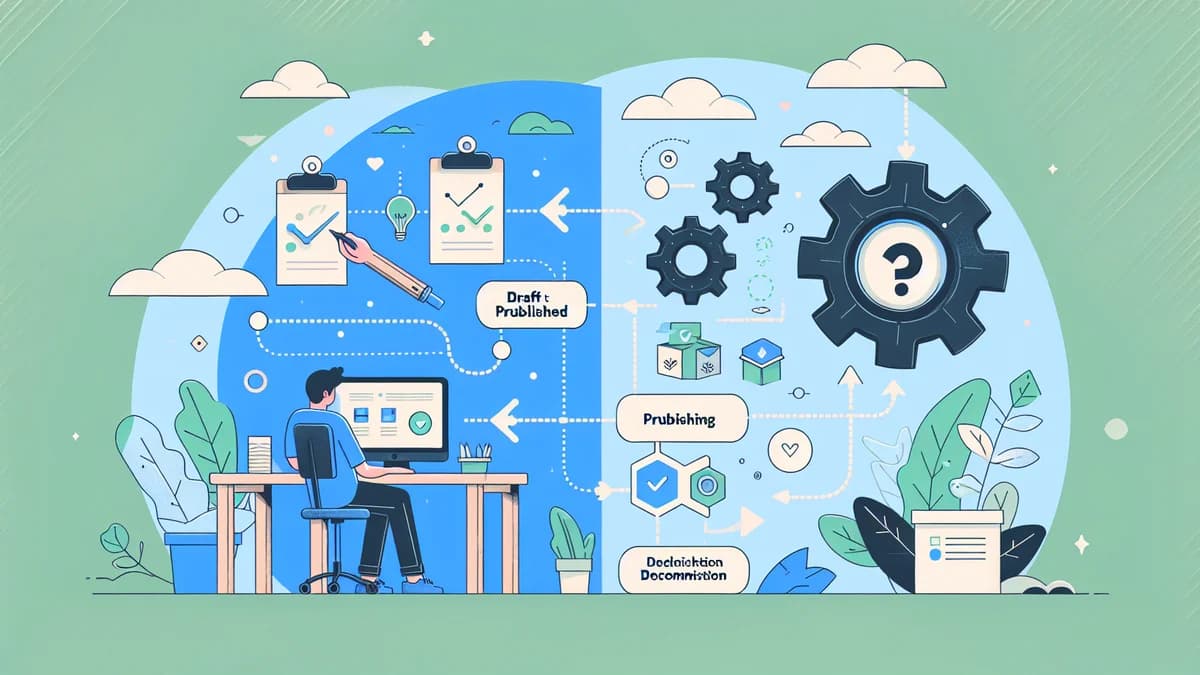
Before diving into the process, it's helpful to understand the lifecycle of a konfig within the Konfigr app. Konfigs move through different states: draft, published, and eventually, sometimes, decommissioned.
When you initially create a parts diagram, it starts as a draft konfig. This allows you to build and preview your interactive diagram without it being live on your storefront. Once ready, you publish the konfig, making it visible to customers on its associated parent product page. Decommissioning is the final stage, where a published konfig is permanently removed.
Decommissioning a konfig is more than just deleting an image. It involves specific actions to ensure that the parent product is handled correctly, linked child products are managed, and any old URLs are properly redirected. This prevents frustrating "page not found" errors and preserves your store's search engine ranking.
Why Decommission a Konfig? Practical Scenarios
There are several practical reasons why you might need to decommission a Shopify parts diagram from your store. Understanding these scenarios helps illustrate the importance of the process:
- Product Discontinuation: If a parent product, like a specific model of pool pump or a piece of machinery, is no longer sold, its associated konfig should be removed.
- Diagram Updates: Manufacturers often release updated exploded views or assembly diagrams. Instead of editing an old konfig, sometimes creating a fresh one and decommissioning the old is cleaner.
- Catalogue Reorganisation: You might restructure your product categories or merge similar products, making certain konfigs redundant or incorrectly placed.
- Seasonal Products: For products with a limited selling season, you might decommission their konfigs during off-peak times to keep your store streamlined.
- Testing and Experimentation: If you created konfigs for testing purposes that are no longer needed, decommissioning them keeps your Konfigr dashboard clean.
In all these cases, a proper decommissioning process, including setting up a Shopify 301 redirect, is crucial to maintain a professional and user-friendly online store.
Step-by-Step Guide: Safely Decommissioning a Konfig
Follow these steps within the Konfigr app to safely remove a parts diagram from your Shopify store.
Step 1: Access the Konfigr App Dashboard
First, log in to your Shopify admin panel. Navigate to the "Apps" section and click on the "Konfigr" app to open its dashboard. Here, you'll see a list of all your created konfigs, whether they are in draft or published status.
Step 2: Locate the Konfig to Be Decommissioned
On the Konfigr dashboard, use the search bar or filter options to find the specific konfig you intend to remove. It's crucial to identify the correct one, especially if you have many similar parts diagrams.
- Look for the konfig's name, which is usually the name of its parent product.
- Confirm its current status (Draft or Published). You can only decommission a published konfig. If it's a draft, you can simply delete it without the decommissioning process.
Once you've located it, click on the konfig's name to open its detailed view.
Step 3: Initiate the Decommission Process
Within the konfig's detailed view, you'll find various settings and actions. Look for the "Decommission" button or option. This action is typically located in a prominent, often red, area to highlight its permanent nature. Clicking this button will initiate a series of prompts to guide you through the safe removal.
Step 4: Understand the Impact on Parent and Child Products
When you decommission a konfig, Konfigr automatically takes action on its associated Shopify products:
- Parent Product Status: The parent product, which previously hosted the interactive diagram, will be set to Draft status in Shopify. This means it will no longer be visible on your live storefront, preventing customers from accidentally finding an incomplete product page.
- Child Product Status: The child products (the individual components linked in the diagram) will remain published. However, they will no longer be hidden from search, collections, or recommendations. If you intend for these parts to remain unlisted or to be removed entirely, you will need to manage their visibility manually in your Shopify admin after decommissioning.
Review these changes carefully to ensure they align with your inventory and product visibility strategy. If you need child products to remain unlisted, consider editing their visibility settings in Shopify after the konfig is decommissioned.
Step 5: Configure 301 Redirects
This is a critical step for SEO and user experience. When you decommission a konfig, its parent product page URL will no longer be active. Konfigr offers options to automatically create a Shopify 301 redirect, which tells browsers and search engines that the page has permanently moved.
- Redirect to Home Page: This option directs visitors from the old konfig URL to your store's main home page.
- Redirect to a Specific Collection: You can choose to redirect visitors to a relevant collection page, such as a category where similar products are found.
- No Redirect: While an option, "No Redirect" is generally not recommended unless you are absolutely certain no one will ever visit the old URL, as it will result in a "404 Page Not Found" error.
Select the most appropriate redirect option. For example, if you're replacing an old model with a new one, consider redirecting to the collection page that features the new model or related items. This helps retain any SEO value the old page had and guides customers to relevant content.
Step 6: Confirm Decommissioning
After reviewing all the implications and setting your redirect preference, Konfigr will present a final confirmation prompt. This is your last chance to review the details before the konfig is permanently removed. Confirming will execute the decommissioning process, removing the konfig from your Shopify store, adjusting product statuses, and setting up the chosen 301 redirect.
Best Practices for Konfig Management and Decommissioning
To ensure a smooth workflow and maintain a healthy Shopify store, consider these best practices:
- Plan Ahead: Before decommissioning, notify any internal teams or customers who might rely on the specific parts diagram.
- Review Linked Products: Double-check the status of the parent and child products in Shopify after decommissioning. Ensure they are set to your desired visibility.
- Test 301 Redirects: After decommissioning, open a new browser window (or incognito window) and try visiting the old URL of the parent product page. Confirm that the 301 redirect correctly takes you to the new destination you selected. This ensures your 301 redirect strategy is working effectively.
- Maintain a Clean Dashboard: Regularly review your Konfigr dashboard. Decommissioning unused or outdated konfigs helps keep your "shopify parts page lifecycle" organised and manageable.
What if You Change Your Mind?
Decommissioning a konfig is a permanent action. If you decide later that you need the parts diagram back, you will have to recreate the konfig from scratch within the Konfigr app. This involves re-uploading the diagram image, re-adding all hotspots and markers, and relinking them to your Shopify products. For this reason, always be certain before confirming the decommissioning process.
Alternative: Moving a Konfig (Rather Than Decommissioning)
Sometimes, you might not want to permanently remove a parts diagram but rather move it to a different parent product. For instance, if you've created a new Shopify product page for an updated model, and the existing konfig is still relevant, you can often "move" the konfig to the new parent product instead of decommissioning and recreating it. This is managed through the konfig settings within the app, allowing you to reassign the parent product directly.
This approach saves time and effort compared to a full decommissioning and recreation, especially when the core diagram and its linked items remain largely unchanged. Check your Konfigr app's features for specific options on managing konfigs between products.
Related Articles
Continue your learning with these related resources:
- How to Create Interactive Parts Diagrams on Shopify: The Complete Guide (Comprehensive Guide)
- Configuring Global and Per-Diagram Settings in Your Shopify Parts App
- Why Live Product Data in Your Shopify Parts Diagram Matters More Than You Think
- 5 Clear Signs Your Shopify Store Needs an Interactive Parts Diagram
- Setting Up 301 Redirects When Retiring a Shopify Parts Catalogue Page
- How to Add an Interactive Parts Diagram to Any Shopify Theme
Conclusion
Safely decommissioning a parts diagram from your Shopify store is a vital part of managing your product catalogue's lifecycle. By following these steps within the Konfigr app, you can ensure that discontinued or updated products are removed gracefully, avoiding broken links and providing a seamless experience for your customers.
Remember to carefully consider the impact on parent and child products, and always implement 301 redirects to preserve SEO and guide traffic effectively. Proactive konfig management ensures your interactive parts catalogue remains accurate, efficient, and user-friendly.